
 한국어
한국어 简体中文
简体中文 日本語
日本語 Español
Transparent background
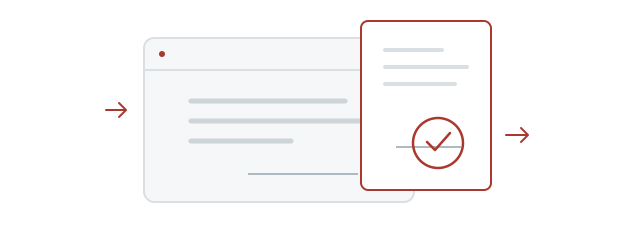
Place your stamp over text or lines without a white rectangle behind it.
Enter your name in Hangul, choose a shape and font, and save a transparent PNG for documents or personal projects.
Loading the stamp maker.
Refresh if loading does not finish.No stamp has been created yet.
No stamp has been created yet.
Your name and stamp stay only in this tab’s memory. After a reload or in a new tab, please create the stamp again.
Create a stampTransparent PNG · 512 × 512 px · No visible watermark
Creating your stamp…
A Korean name stamp, or dojang, is a seal design containing a name. Stampng creates a digital image of your Hangul name, ready to save as a transparent PNG.
Place your stamp over text or lines without a white rectangle behind it.
Download the original PNG and resize it to fit. Print quality depends on the placed size and application settings.
Choose a name, shape and font. No account, payment or installed design software is needed.
Place the stamp over the (인) seal mark beside the name. Its transparent background keeps the document visible. Resize proportionally to fit the signature area.
Insert the PNG with Insert → Picture. In object properties, turn off inline placement and choose In Front of Text to place it over a signature field.
Read guideInsert the PNG using Insert → Pictures. Choose In Front of Text in Layout Options, then resize from a corner while keeping its proportions.
Read guideUse Insert → Illustrations → Pictures. Move the image to the signature field, keep its proportions when resizing, and check Print Preview.
Read guideCheck whether your PDF app supports image insertion. Acrobat Reader creates custom stamps from PDF only, which differs from inserting a PNG. Reopen the saved file to check.
Read guideCompare the real Hangul examples, from brush-like lettering to clean modern type. Korean font names are kept in their original form. Hanja coverage varies by font.
Yes. You can create and download a stamp PNG without an account or payment.
Previews have a watermark and an opaque background. The final file from Save PNG has a transparent background and no visible watermark.
Some viewers display transparent areas as white or black. Insert the original downloaded PNG, not a screenshot, into a document to check. Send it as a file to avoid image conversion in messaging apps.
The name is sent to the API for image generation, but is not recorded in usage statistics or logs. Your input and completed PNG remain only in the current tab’s memory.
First check how you want your name written in Hangul, then type or paste it here. Spellings vary with pronunciation. Stampng does not automatically translate or transliterate names.
Fonts marked Hangul · Hanja support some Hanja. Coverage varies and some characters may be unavailable. A non-Hanja font may be replaced by Noto Serif KR.
Previews have a watermark and an opaque background. The final file from Save PNG has a transparent background and no visible watermark.
Some viewers display transparent areas as white or black. Insert the original downloaded PNG, not a screenshot, into a document to check. Send it as a file to avoid image conversion in messaging apps.
Save the PNG from your browser, then use Insert Picture in your document app. Download locations and features depend on the device, browser and app.
Use Edit and create again on the result page to keep your choices while editing. Reloading the page clears the input and image.